Universal QR Reader: Scan Web and Camera Codes Without an App
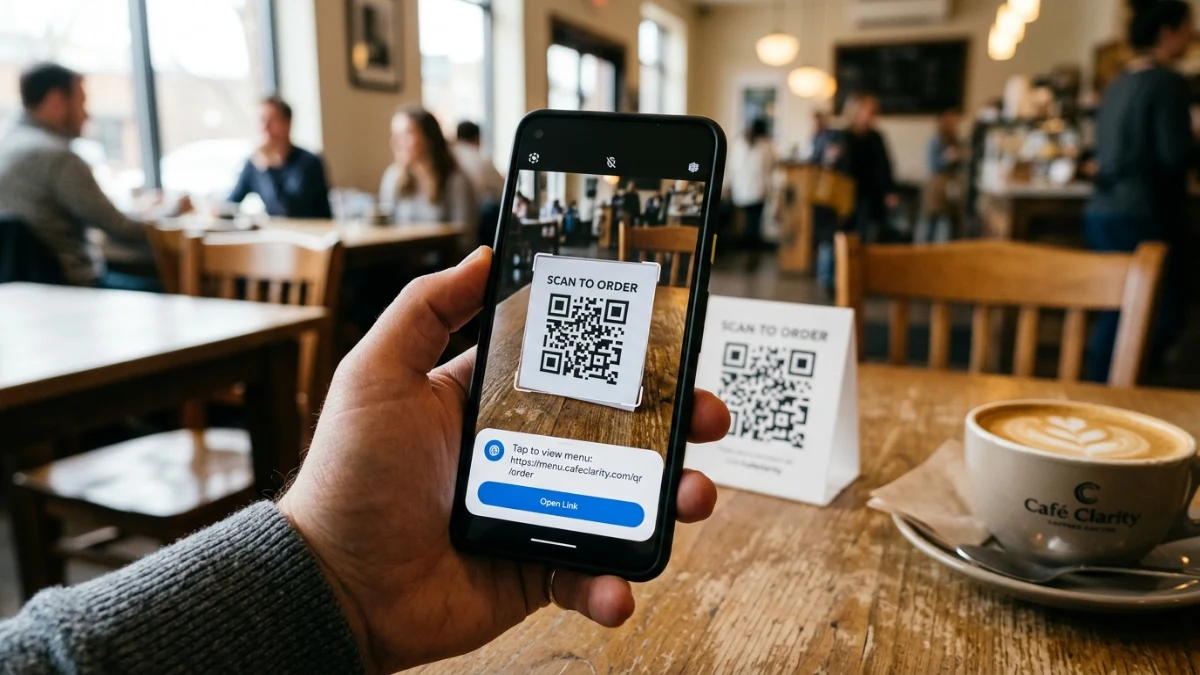
In the modern digital workspace, quick access to information encoded in QR codes is essential. Using a secure, high-performance universal qr reader directly in your browser allows you to scan any matrix code from a webcam feed or local screenshot without downloading external applications. Traditional methods often require installing proprietary mobile apps, exposing user data to third-party tracking libraries. By transitioning to a web-native decoder, developers and general users alike can instantly translate pixel patterns into raw text and URLs, ensuring maximum privacy and operational speed.
QR codes serve as the default bridge between off-screen interactions and digital resources. From scanning two-factor authentication (2FA) setup keys to opening API documentation endpoints during device staging, matrix barcodes are ubiquitous. However, scanning them has historically been associated with mobile phones. On desktop computers, developers often struggle to decode QR codes sent via slack, email, or embedded in design files. Taking a screenshot and using a web utility is significantly faster than pulling out a mobile device to scan a computer screen.
A browser-native scanner bridges this gap by accepting diverse media formats directly on your workstation. Whether your source is a live webcam feed of a physical prototype or a PNG layout generated in a design application, you can extract the encoded payload without leaving your keyboard. This frictionless flow is critical for engineers testing localized environments or product managers validating redirect destinations before publishing.
Why Traditional Mobile Scanner Apps are a Security Risk
The marketplace for mobile QR reader applications is filled with privacy risks. A significant percentage of free mobile scanners bundle aggressive ad networks, location trackers, and analytical SDKs. When you download a basic scanner app, it frequently requests permissions that are completely unrelated to taking a photo, such as access to your contact list, system files, or fine-grained GPS coordinates. This data is collected and sent to external advertising servers to build targeted marketing profiles.
Furthermore, many mobile apps employ predatory monetization practices, including hidden subscription models that charge users weekly fees after a brief trial. In corporate environments, this creates substantial compliance and cybersecurity issues. An employee scanning an internal staging QR code using a compromised third-party mobile app could unintentionally leak API endpoint locations, database credentials, or proprietary URLs to external databases. Eliminating the app installation requirement completely mitigates these vectors.
How a Universal QR Reader Ensures Client-Side Security
Security in web development starts with isolating data. When you scan sensitive operational payloads—such as private access keys or local database configurations—the data should never traverse the public network. A browser-implemented decoding system processes the optical inputs entirely within the user's sandbox environment. By using the HTML5 Canvas API and WebRTC for hardware stream capture, the tool performs all mathematical transformations client-side. The image data is read as raw pixels, evaluated by the parsing engine, and destroyed immediately after decoding.
This localized design guarantees that no external server receives your camera feed, screenshots, or decoded values. Unlike cloud-based decoders, which require uploading files to a remote server for processing, client-side decoding ensures your data is safe from interception, interception logs, or server-side database leaks. Developers can safely scan codes containing internal routing URLs, credentials, or personal information without violating security guidelines or corporate data protection regulations.
Core Features of the Web-Native QR Decoder
A highly optimized scanner must handle multiple scanning modes to fit into different engineering and daily workflows. Rather than limiting input to a physical webcam, the tool supports three primary methods of parsing visual data:
- Webcam Stream: Uses the browser's native getUserMedia API to scan physical materials, badges, or mobile screens in real time.
- Image File Uploads: Allows users to drag and drop standard image files (PNG, JPEG, WebP) directly into the interface for immediate extraction.
- Clipboard Screenshot Pasting: Supports pasting screenshots directly from the clipboard (Ctrl+V or Cmd+V) to parse code images without saving files.
Step-by-Step Guide to Scanning QR Codes in Your Browser
Integrating the web-native reader into your debugging or everyday routine is straightforward. The interface is built for speed and requires zero initial setup. The application requests camera permissions dynamically and only holds them while the scanner view is active, ensuring you have complete control over your peripheral hardware.
Scan Initiation Checklist
- Access the Scanner: Open the ToolMars Universal QR Reader to initialize the web interface in your browser.
- Select Input Source: Toggle between the active camera stream (webcam) or upload a file by drag-and-dropping an image/screenshot.
- Decode and Copy: The underlying algorithm instantly parses the image, displaying the text payload and providing a one-click copy utility.
Under the Hood: Scanning and Parsing Matrix Data via JS
To decode a matrix barcode, the system must first locate the code's position in space. A standard QR code includes three large finder patterns at its corners, which help the scanner determine the scale, rotation, and perspective of the grid. Once these patterns are identified, the algorithm samples the light and dark pixels to build a binary representation of the matrix. This representation is processed using error-correcting algorithms to verify data integrity.
Using a browser-based tool as a local matrix scanner also eliminates the need for cellular data or local app store access, which is incredibly useful when troubleshooting network issues. The script accesses the video frame rate, converts the RGB channels to grayscale to reduce computation overhead, and runs a binarization process to enhance contrast. Once the grid layout is mapped, the library decodes the underlying byte stream according to standard ISO protocols.
// Grabbing video frames and processing them using canvas
function captureFrameFromVideo(video: HTMLVideoElement): ImageData | null {
  const canvas = document.createElement("canvas");
  canvas.width = video.videoWidth;
  canvas.height = video.videoHeight;
  const ctx = canvas.getContext("2d");

  if (!ctx) return null;

  // Draw the current video frame onto the temporary canvas
  ctx.drawImage(video, 0, 0, canvas.width, canvas.height);

  // Retrieve the raw RGBA pixel data for analysis
  return ctx.getImageData(0, 0, canvas.width, canvas.height);
}
In the implementation shown below, the canvas acts as the intermediary processor. By extracting the image data using the getImageData method, we get access to a flat array of RGBA pixel values. The decoding engine analyzes this array to locate the finder patterns. Because this calculation is executed locally inside the browser's JavaScript engine, it is incredibly fast, often resolving complex codes in less than twenty milliseconds.
Frequently Asked Questions
Q: Why does my webcam fail to scan the QR code?
A: The most common causes are poor lighting, camera glare, or positioning the code too close to the lens. Ensure the code is flat, well-lit, and occupies a significant portion of the camera frame.
Q: Is it safe to scan confidential business QR codes using this tool?
A: Yes. All image processing and decoding occur locally inside your browser's sandboxed memory. No image data or decoded text payloads are ever sent to external servers or logged.
Q: Can this tool read damaged or low-quality QR codes?
A: Yes, it uses built-in Reed-Solomon error correction to reconstruct missing or distorted segments. Depending on the error correction level used during generation, it can read codes with up to 30% damage.
Q: How can I generate my own custom, scan-optimized QR codes?
A: You can create your own custom codes using the ToolMars QR Code Designer. This utility allows you to configure error correction and style elements to ensure optimal scan performance.