How to Optimize Your Content with a High-Performance Word Counter
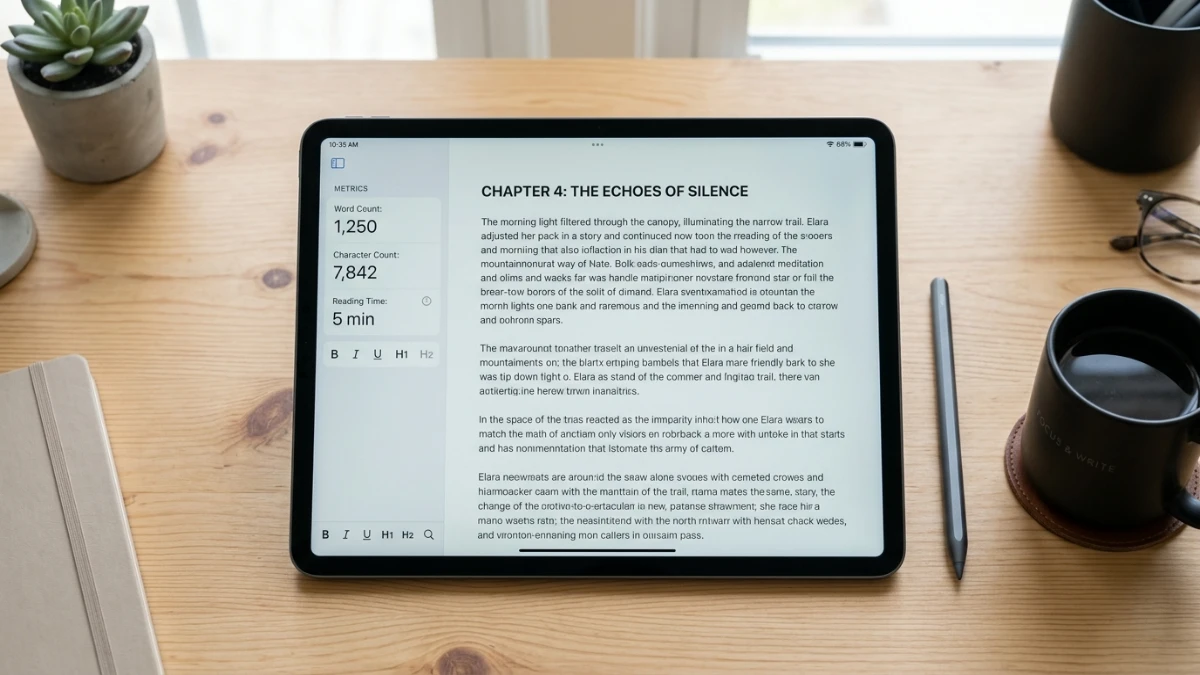
Writing high-quality content requires precision, structure, and adherence to specific length constraints. Whether you are drafting a blog post, formatting a technical report, or scripting social media updates, tracking your metrics is essential. Utilizing a dedicated word counter lets you monitor character counts, calculate reading times, and manage text formatting configurations. By running these checks locally in your browser, you ensure complete privacy and get real-time feedback without the delays of server-side roundtrips, allowing you to streamline your writing workflow.
For many years, creators had to rely on heavy desktop software or insecure online services that process text inputs on their backend servers. Sending unpublished drafts, proprietary copy, or internal documents to a cloud service presents a clear data leak risk. In contrast, modern browser-based sandboxes allow all calculations to execute locally on your machine, ensuring your data remains in your control.
The Core Metrics of Content Length and Density
In the digital space, the length and structure of your text directly influence how search engines rank your page and how users consume your message. Different platforms enforce distinct character limits that require strict compliance. For instance, search engine result pages (SERPs) typically truncate meta titles at 60 characters and meta descriptions at 160 characters. Social media platforms enforce hard caps, such as the 280-character limit on standard X (formerly Twitter) posts or the 3,000-character limit on LinkedIn updates.
Understanding the difference between character counts with spaces and without spaces is crucial. Spaces act as visual separators for human readers, but they also occupy byte allocation in data payloads. Similarly, tracking paragraph counts helps editors evaluate visual readability. Long walls of text are visually exhausting on mobile screens. Breaking copy into readable paragraphs of 3 to 4 sentences ensures high comprehension and keeps readers engaged, reducing bounce rates and maximizing dwell times.
Enhancing Editorial Efficiency with a Browser-Based Word Counter
For modern writers, a browser-based word counter is essential because it eliminates the friction of copy-pasting text into bulky desktop applications. A fast, local tool allows you to paste your copy, review the metrics instantly, and make edits on the fly. This real-time analysis makes it easy to trim unnecessary phrases and adjust your pacing to fit target limits perfectly.
To streamline this process, you can use the ToolMars Word & Text Counter. Operating entirely within your browser's local sandbox, this tool updates your word count, character count, and paragraph density as you type. It also calculates reading time dynamically, giving you an immediate estimate of how long a user will take to consume your article or documentation.
Key Word & Text Processing Guidelines
- Instant Calculation: All calculations happen locally inside your browser memory, guaranteeing zero network latency.
- Data Privacy: Paste draft content or client information securely, knowing your input is never transmitted to an external database.
- Inline Case Conversion: Change capitalization structure immediately using case-switching macros to standardize layout forms.
- Reading Speed Analysis: Leverage dynamic reading estimates to budget content lengths for technical document readers.
Technical Breakdown: Calculating Read Times and Word Counts
From a developer's perspective, implementing a text analyzer requires handling several edge cases. Standard string splitting using simple space characters is often inaccurate. It fails when handling double spaces, tabs, or newlines, resulting in inflated counts.
To build a robust text analysis function, you must use regular expressions that target word boundaries while ignoring extra white space. Additionally, calculating estimated reading time is achieved by dividing the total word count by the average adult reading speed, which typically ranges from 200 to 250 words per minute.
interface TextMetrics {
  words: number;
  charactersWithSpaces: number;
  charactersWithoutSpaces: number;
  paragraphs: number;
  readingTimeMinutes: number;
}

export function analyzeText(text: string): TextMetrics {
  const cleanText = text.trim();

  // Calculate words using regex to match alphanumeric character blocks
  const wordsArray = cleanText ? cleanText.match(/\b[-a-zA-Z0-9']+\b/gi) : [];
  const words = wordsArray ? wordsArray.length : 0;

  const charactersWithSpaces = text.length;
  const charactersWithoutSpaces = text.replace(/\s/g, "").length;

  // Calculate paragraphs by splitting on newline characters
  const paragraphs = cleanText
    ? cleanText.split(/\n+/).filter(p => p.trim().length > 0).length
    : 0;

  // Estimate reading time assuming an average speed of 225 words per minute
  const readingTimeMinutes = Math.max(1, Math.ceil(words / 225));

  return {
    words,
    charactersWithSpaces,
    charactersWithoutSpaces,
    paragraphs,
    readingTimeMinutes,
  };
}
This utility ensures that your counts remain accurate even when text contains markdown characters, code blocks, or irregular indentation.
Standardizing Text Layouts with Case Conversion Routines
In addition to tracking length, writers and developers often need to alter the capitalization of their text. Manually retyping a headline to make it uppercase or reformatting a list of database columns to lowercase is tedious and error-prone. Integrated case conversion utilities solve this by modifying strings instantly in browser memory.
Common case changes include sentence case, title case, UPPERCASE, and lowercase. Sentence case capitalizes the first letter of each sentence, which is ideal for quick paragraph fixes. Title case capitalizes the first letter of major words, which is the standard for headings and blog titles. UPPERCASE and lowercase are useful for code variables, environmental constants, or formatting commands.
Once your text is correctly capitalized and optimized for length, you may need to convert the titles into clean, URL-friendly slugs for your blog routes or page URLs. You can use the ToolMars Slug Generator to strip special characters and replace spaces with hyphens, creating an SEO-friendly path that matches your optimized text layout perfectly. Combining these text analysis and conversion utilities establishes a complete, secure formatting system.
Frequently Asked Questions
Q: How does a local word processor count text compared to Microsoft Word?
A: Microsoft Word and local web tools use slightly different algorithms to parse word boundaries, punctuation, and hyphenated words. While slight variations may occur, the browser-based calculator provides a highly accurate estimate suitable for web publishing and SEO.
Q: Is my pasted text safe and private?
A: Yes, because the ToolMars utility runs completely client-side. The text you enter is processed inside your browser tab and is never transmitted over the internet or saved on our servers, ensuring your drafts remain private.
Q: How is reading time calculated?
A: Reading time is determined by dividing the total word count by the average human reading speed of 225 words per minute, rounded up to the nearest minute.
Q: Why is character count with spaces important for SEO?
A: Search engine title and description fields are measured in pixels, which correlate directly with character length including spaces. Keeping your metadata within these thresholds prevents truncation in search results.